
1. Prepare the post
Edit the caption and add suitable media. Use the preview to check what you are about to send.
Create drafts from your brand context, review the copy and media, then choose when to publish to Instagram, Threads, and X. Follow a post from the composer to its destination-specific publishing result below.
Creation
Brand-aware drafts
Publishing
Instagram · Threads · X
Visibility
Per-destination status
Inside the product
For the coffee shop’s Monday post, review the caption, attach the roast photo, select the connected Instagram account, and choose a publish time. Repeat for the channels that suit each post; a multi-channel plan does not need identical content everywhere.
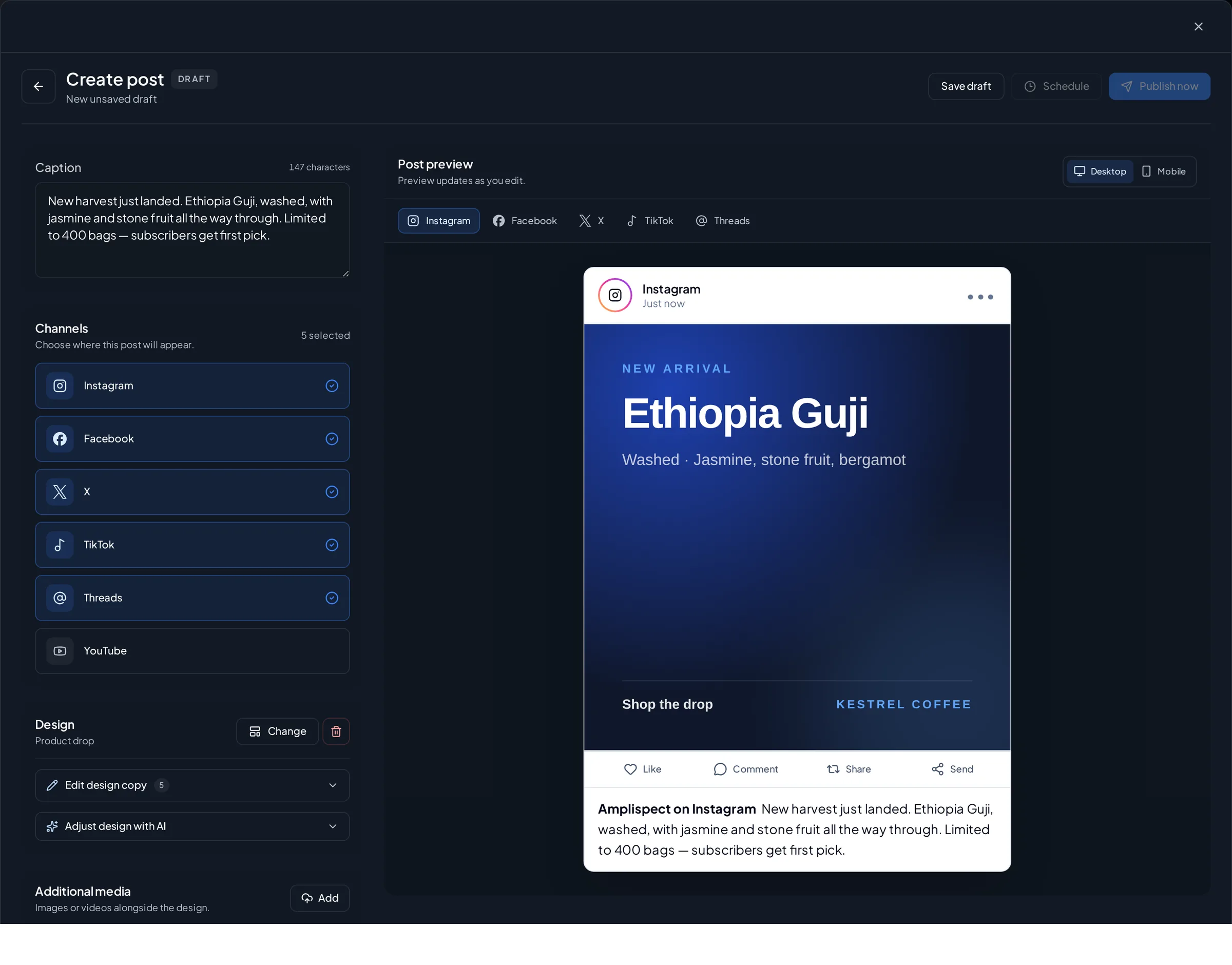
Edit the caption and add suitable media. Use the preview to check what you are about to send.
Select connected destinations and check the displayed publish date and time. Resolve any platform validation errors before scheduling.
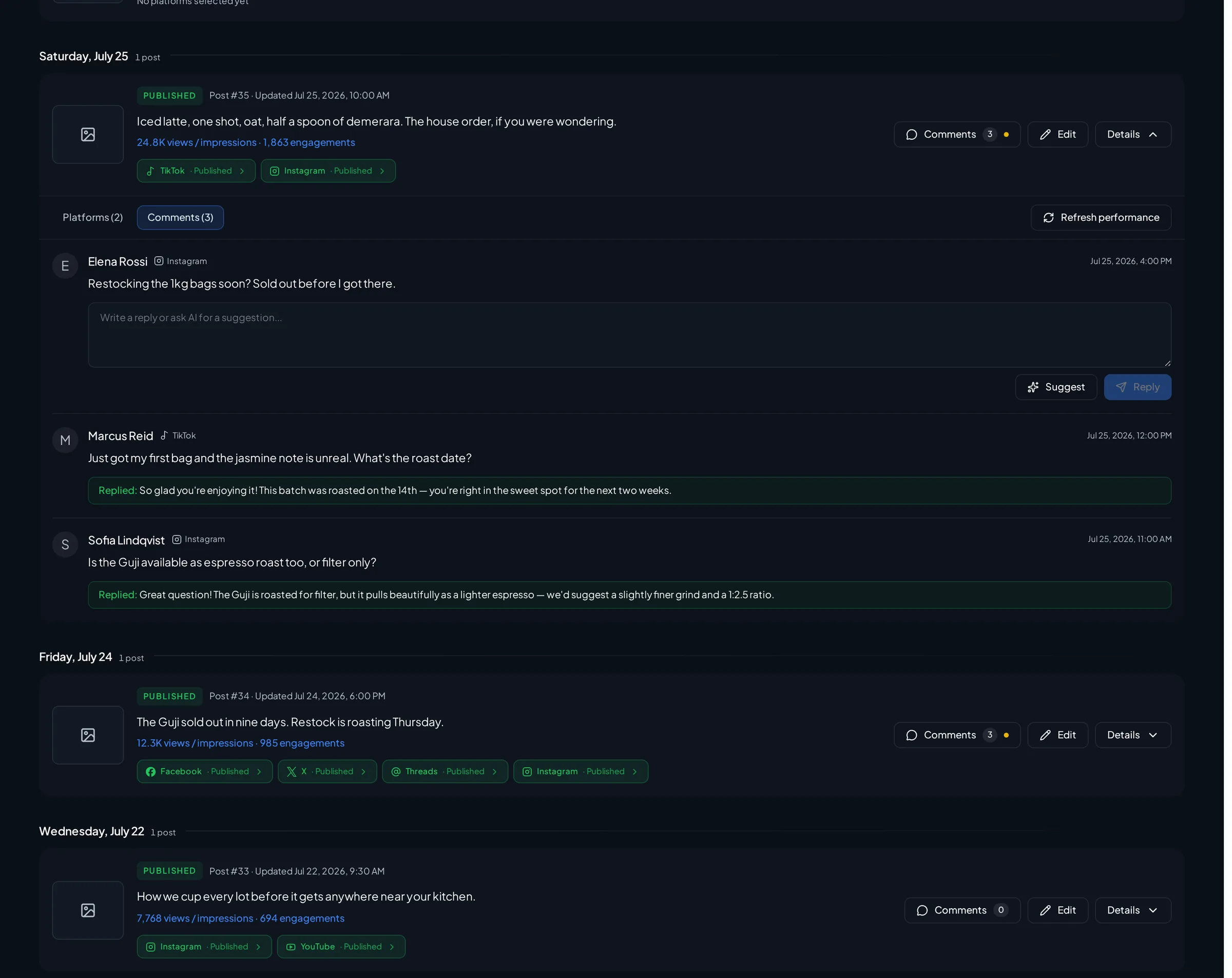
Check the result for each destination in the activity view. A scheduled post is not yet a confirmed published post.
Attach supported media and inspect the image or video preview. Resolve the account and format requirements shown in the composer.
Review the conversation opener, links, and any attached media. Check the destination’s text and media validation.
Keep the message focused and check text length, links, and media against the selected account’s validation.
Scheduling is only useful when there is something worth publishing. Amplispect uses your workspace context to generate a weekly starting point, then gives you a full composer for the final copy and media.
A post can behave differently on each network. Amplispect keeps the selected accounts and platform previews visible so you can catch incompatible content before it enters the queue.
Each selected account becomes a visible publishing destination. That makes partial results and failures easier to identify without assuming that one overall status tells the whole story.
Amplispect reduces handoffs while keeping the final publishing decision with the person responsible for the brand.
Start from the generated calendar or a new draft, then refine the text, media, and design.
Select connected Instagram, Threads, or X accounts and review how the post will behave.
Set the publish time and monitor the result for each selected destination.
FAQ
AI drafting prepares editable content from your business context. Scheduling sets the approved post’s destinations and publish time. You can edit the draft and check its media before committing it to the schedule.
You can select multiple connected accounts when the content meets each destination’s requirements. Review the platform previews and validation first. Use separate posts when a network needs different wording or media.
Check the activity view for the result and error associated with that destination. Resolve the reported issue and verify which destinations already succeeded before submitting again, so you do not duplicate successful posts.
Related workflows